How alarms work
When the Hectare Mini raises an alarm, what the alarm window shows, how to close it, which messages are not alarm windows, and how the alarm topics of this manual are organised.
An alarm is a window that opens over the working screen, with an alarm signal. It tells you that one device — a sensor, a motor, an actuator — or the system as a whole has found a fault. The alarm topics of this section are grouped by device. Look for the words you see on the screen.
When the panel raises an alarm
A fault is not reported the moment it appears. The condition must hold without a break for the time set in “Alarm delay” before the window opens.
| Setting | Value |
|---|---|
| Where | “Settings” → “Alarm delay”, “Operator” level — The Settings menu |
| Range | 2 to 20 seconds, in steps of 1 second |
| Default | 3 seconds. A stored value outside the range is reset to 3 by itself. |
A short delay reacts fast, but also to a single bump or a short gap in the seed flow. A long delay keeps the screen quiet, but a real fault can run for up to twenty seconds before you hear of it.
Two cases do not follow the delay:
- A lost connection is counted in polls: “Connection lost” appears after three polls in a row without an answer.
- Right after a sensor has received new settings, its alarms are held back for a short time, so that configuring a device does not cause a burst of alarms.
The alarm window
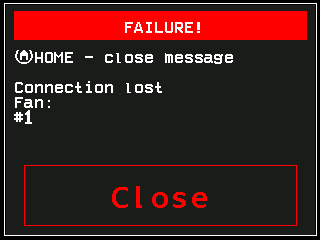
- “FAILURE!” — the red title of every alarm window, whatever the fault.
- “HOME - close message” — the hint how to close it.
- The alarm text — the fault. Look it up under this text in the alarm topics.
- The kind of device, here the fan. The same text can come from different devices; this line tells you which.
- The number of the device, here fan 1. When several devices of one kind report the same fault, they share one window and are listed together, for example #3-5,8.
- “Close” — closes this alarm.
The alarms of the system as a whole — for example about the rate of a product — have no device line.
Closing an alarm
| What you do | What happens |
|---|---|
| Press “HOME”, or touch “Close” | This alarm closes. If more alarms are waiting, the next one opens. The other buttons do nothing in the window. |
| Hold “HOME” | The window closes and the panel returns to the home screen. |
While the window is open, the panel sounds the alarm signal and lights its alarm indicator. Closing a window does not repair the fault, and the same alarm comes back only after the fault has cleared and appeared again. The active alarms of a sensor stay listed on its status screen — The sensor status screen.
Alarms are hidden at the higher access levels
At “Agronomist” and “Service” no alarm windows are shown. They are not lost: when you return to “Operator”, the panel drops the alarms that have cleared and shows the ones that are still true. See Access levels and User is Agronomist.
Not alarm windows
| Message | Where | Topic |
|---|---|---|
| “SLOWER”, “FASTER” | in place of the speed figure | Speed sensor alarms |
| “NOT UNDER CONTROL” | on the seed diagram | Seeding alarms |
The alarm topics
Any device · Speed sensor · Seeding · Seed sensor state · Fan and dispenser shaft · Hopper · Pressure · Engine · Dosing by weight · Access level · Tramline · Dispenser motors
Each alarm has its own heading with the text exactly as on the screen. Under it: what the panel has found, and what to check, in the order a mechanic checks it — the quick checks on the panel first, then the machine, then the sensor itself.
Something your machine does that this page does not answer? Write to support@agriwelt.com — an engineer answers.