GPS reception and the GPS information screen
How the Hectare Mini takes the travel speed from its built-in GPS receiver, what the colour of the satellite icon means, and how to read the GPS information screen.
The panel has a GPS receiver built in. It gives the travel speed where the drill has no wheel or radar sensor, or alongside one. While the receiver answers and has a valid fix, the speed comes from GPS. If it falls silent or loses the signal, the sensor set under “Speed” in the profile takes over by itself — you do not have to switch anything.
The receiver is switched on by the profile item GPS: UBX for the built-in receiver (the normal setting) or NMEA; “No” switches it off and hides the satellite icon.
The satellite icon
The icon stands at the right edge of the home screen, with the number of satellites used in its lower right corner.

| Colour | Meaning |
|---|---|
| Red | The receiver does not answer, or it answers without a valid fix — normal indoors and just after switch-on. The number is not shown while the receiver is silent. |
| Grey | Valid fix, fewer than 5 satellites. |
| Yellow | Valid fix, 5 to 7 satellites. |
| Grey | Valid fix, 8 satellites or more. The two grey states differ only by the number. |
The information screen
To open it, hold “MENU” on the home screen, select the satellite icon with “UP” / “DOWN” and press “MENU”.
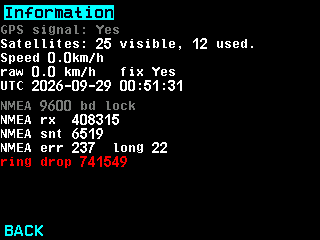
- “GPS signal:” “Yes” if the receiver answers, otherwise “No”.
- Satellites — the number seen and the number used in the fix.
- Speed — the speed as the seeding uses it. Below a small standstill threshold it shows 0 km/h, so that a drill standing still does not count area.
- raw — the unfiltered speed, and whether the fix is valid.
- UTC — date and time from the receiver; zeros before the first valid fix.
- Reception counters. With NMEA: bytes received, valid sentences, checksum errors and the baud rate found; with UBX: bytes, frames and errors.
- ring drop — bytes lost in the receive buffer. A rising figure means the connection to the receiver is disturbed.
- BACK leaves the screen.
The screen only shows; nothing on it can be changed, and no access code is needed.
Something your machine does that this page does not answer? Write to support@agriwelt.com — an engineer answers.