The profile
What the profile tells the panel, how to check it, what each profile item allows, and when the panel refuses a profile.
The profile tells the panel which devices, and how many of each, are on the machine. A panel usually arrives with the profile already set. Check it before you set anything else: a device missing from the profile is never watched, and a device in the profile that is not fitted raises “Connection lost”.
Check the profile on the home screen
Switch the panel on and wait a few seconds. Then look at the home screen:
- No “Connection lost” alarm — the panel has found every device the profile declares.
- No white indicators with an exclamation mark — no device is left out of control.
- No red indicators with an “X” — every device answers.
What the indicators mean: Indicators. How to take a device into control or out of it: Take a sensor in and out of control.
Open the profile
The profile is at the “Service” level: raise the level (Enable the Agronomist level — choose “Service”), then “MENU” → “Service” → “Profile”.
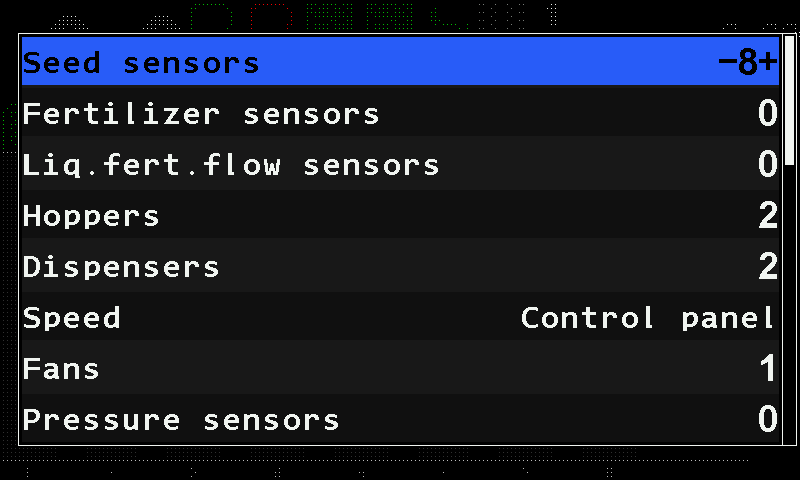
- “Seed sensors” — the number of seed sensors. The selected item shows its value between – and +: change it with “MINUS” / “PLUS”.
- “Fertilizer sensors” — dry fertilizer sensors.
- “Liquid fertilizer flow sensors” — liquid fertilizer section sensors.
- “Hoppers” — hopper level sensors.
- “Dispensers” — dispenser shaft sensors.
- “Speed” — where the travel speed comes from.
- “Fans” — fan speed sensors.
- “Pressure sensors” — air pressure sensors.
- Scroll bar. More items follow below — see the table.
The profile items
| Item | Range |
|---|---|
| “Seed sensors” | 2 … 120. The menu lets you enter 1, but such a profile is refused when it is saved. |
| “Fertilizer sensors” | 0 … 60; seed and fertilizer sensors together not more than 120. |
| “Liquid fertilizer flow sensors” | 0 … 60 |
| “Hoppers” | 0 … 9 |
| “Dispensers” | 0 … 9 |
| “Speed” | “No” / “Control panel” (sensor wired to the panel) / “Input device” (one wheel sensor on the input device) / “Input device (2)” (two wheel sensors on the input device). |
| “Fans” | 0 … 2 |
| “Pressure sensors” | 0 … 3 |
| “Work position sensor” | “No” / “Yes” |
| “Markers” | “No” / “One” / “Both” |
| “No battery charge”, “Emergency oil pressure”, “Ignition”, “Low fuel”, “Air filter” | The engine sensors — “No” / “Yes” each. |
| “Seed dispenser motors” | 0 … 60 |
| “Fertilizer dispenser motors” | 0 … 30; both motor groups together not more than 60. |
| “Tramline actuators” | 0 … 4 |
| “Liquid fertilizer pump controller” | 0 … 1 |
On a panel built for a system without electric motors, the two motor items are not in the menu.
When the panel refuses a profile
The panel checks the whole profile, not only the item you changed. It refuses a profile when:
- the hopper, dispenser and engine sensors together come to more than 12;
- they come to more than 10 while the pressure and fan sensors together come to more than four;
- the pressure and fan sensors together come to more than five;
- there are fertilizer motors but no seed motors, or fertilizer motors but no fertilizer sensors;
- there are electric motors or a liquid fertilizer pump but no speed sensor;
- liquid fertilizer valves and a pump controller are declared at the same time.
Save the profile
After changing the profile, select “Save profile” at the end of the “Profile” menu and press “MENU”. The panel asks “Are you sure?”.
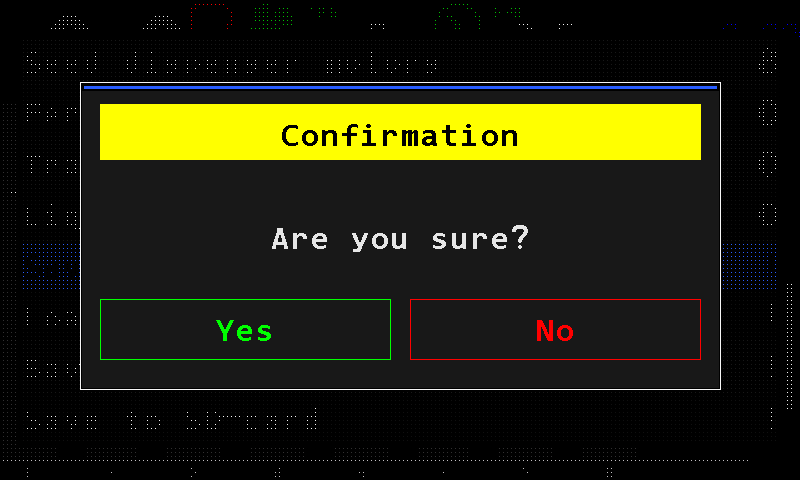
The confirmation window. Touch “Yes”. The panel shows “Wait...”, then “Saved” and “Restart system”, and restarts by itself.
If nothing was changed, the panel only shows “No changes”. If the profile breaks one of the rules above, it shows “Invalid profile!” in red and saves nothing.
Saving all the settings of a profile, and moving them on a memory card: Save and load settings.
Something your machine does that this page does not answer? Write to support@agriwelt.com — an engineer answers.