The second home screen
The second home screen — what is on it, how to open and close it, and what its chevrons, tiles and symbols do when touched.
The second home screen shows the work in large figures and the dispenser motors as a row of tiles. It suits a machine whose seeding rate is held by dispenser electric motors, where the panel watches the motors and the main working units rather than a diagram of sections.
Open it from the home screen with a long swipe to the right. Close it with a long swipe to the left — it returns to the home screen. It is not part of the circle of working screens, and the panel never opens it by itself.
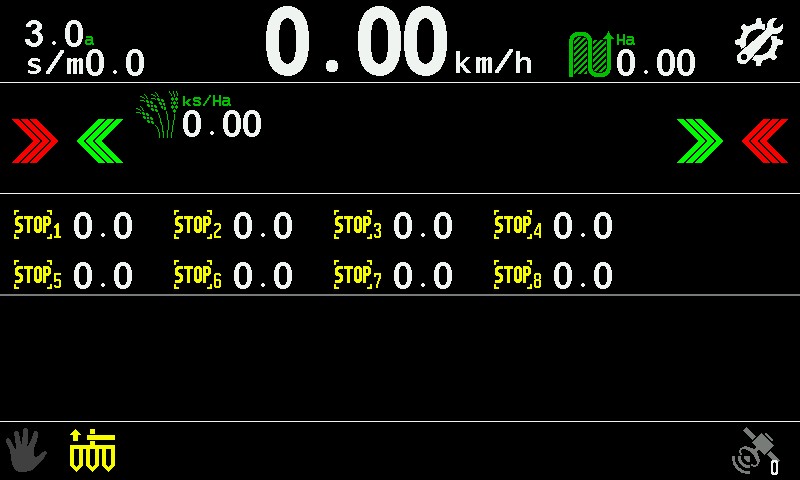
- Seeding rate. In seeds per metre.
- Travel speed. In km/h; yellow while it is simulated. Touch and hold it for the context menu of the speed sensor. Speed
- Settings symbol. A tap opens the main menu.
- GPS symbol. A tap opens the GPS screen. GPS
- Red chevrons. A tap takes the outermost motor on that side out of control.
- Green chevrons. A tap takes the next motor towards that side back into control.
- Target rate. Shown in the “Precise” mode. Touch and hold it until it lights up, then swipe up or down to change it.
- Motor tiles. Number and value of each motor; the icon alternates with the state sign — STOP, or a red × with XXX. Touch and hold a tile for its context menu.
- Stop symbol. Touch and hold it to lock or unlock product application. A short beep confirms.
On a machine with a fan, a pressure sensor or a pump, the unit value stands at the left of the top line — one at a time. A tap shows the next one; touch and hold opens its context menu.
Each motor icon alternates, about once a second, between the picture of the motor and the sign of its state. What the states mean: Motors screen.
The chevrons are always on this screen. On a machine without dispenser motors they have nothing to act on.
What you can do here
| To do this | Do this |
|---|---|
| Open the main menu | Tap the settings symbol |
| Change the seeding rate | Touch and hold the rate, then swipe up or down. It stays within the permitted limits. A tap elsewhere ends it. |
| Set the target of a product by weight | Touch and hold its kg/ha tile; type the rate on the number pad |
| Take motors out of or into control | Tap the red or green chevrons. Confirm with “Yes” if the panel asks. |
| Open the settings of a motor | Touch and hold the motor tile |
| Lock or unlock product application | Touch and hold the stop symbol. A short beep confirms. |
| See the receiver's data | Tap the GPS symbol |
| Return to the home screen | Long swipe left |
Something your machine does that this page does not answer? Write to support@agriwelt.com — an engineer answers.