Device configuration — before you start
What device configuration is, the preparation it needs, and the three-item pattern every configuration menu follows.
When a system is commissioned, or a sensor is replaced, each new device must be given its address — the number by which the panel finds it on the sensor network. That is done in “Service” → “Sensors Configuration”, one device at a time.
Prepare
Disconnect every sensor from the network connector of the panel.
Connect only the one device that is to be given a new address.
Switch the panel on. Alarms about lost communication appear — close them all with “Close” (How alarms work).
Raise the access level to “Agronomist” — see Enable the Agronomist level.
Tap the home screen with two fingers, then tap “Service” twice and “Sensors Configuration” twice. The menu offers four kinds of device: “Seed sensor”, “Pressure sensor”, “Concentrator-8” and “Tramline actuator”.
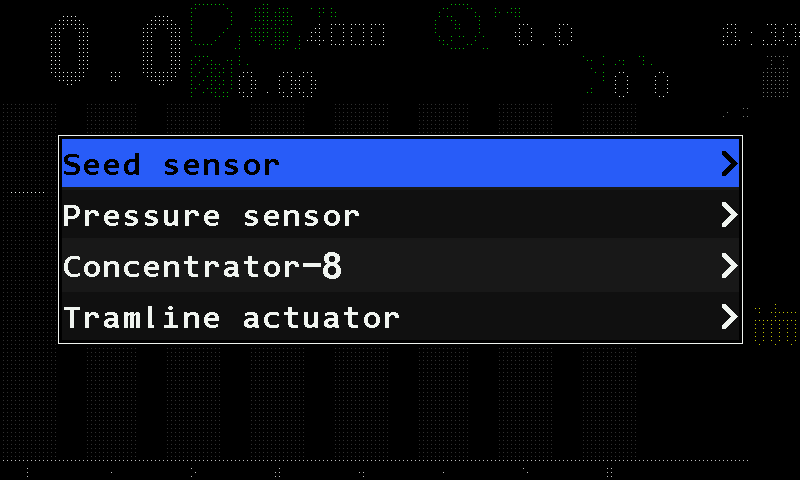
The Sensors Configuration menu.
The pattern
All four menus work the same way:
| Item | What it is |
|---|---|
| “Sensor address” / “Device address” | Which device the menu talks to. Leave it at “AUTO” and the panel talks to the single device that answers. Tapping the selected item again starts a search; each further tap steps to the next device found. |
| “New address” | The address the device is to take. Set it with a swipe right or left. |
| “Set” | Writes it. Tap it, and tap it again. “Done” means the device has accepted it. |
What “Set” can answer:
| Message | Meaning |
|---|---|
| “Done” | The device has taken the new address. |
| “More than one device in network!” | With “AUTO”, more than one device answers. Disconnect all but one. |
| “No connection” | No device answers. Check the cable and the power of the device. |
| “Address: … is used!” | The address you chose belongs to another device already. Choose another. |
Afterwards, every time: disconnect the device and connect it again, return to the home screen and check that it appears where it should. Then set the level back to “Operator” — or switch the panel off and on, which does the same.
The devices
| Device | Topic |
|---|---|
| Seed sensor | Configure a seed sensor |
| Pressure sensor | Configure a pressure sensor |
| HUB8 input device — “Concentrator-8” on the screen | Configure a HUB8 |
| Tramline actuator controller | Configure a tramline actuator controller |
| Electric motor controllers — their own way in | Configure the motor controllers |
Something your machine does that this page does not answer? Write to support@agriwelt.com — an engineer answers.