Hectare monitors
Hectare 5
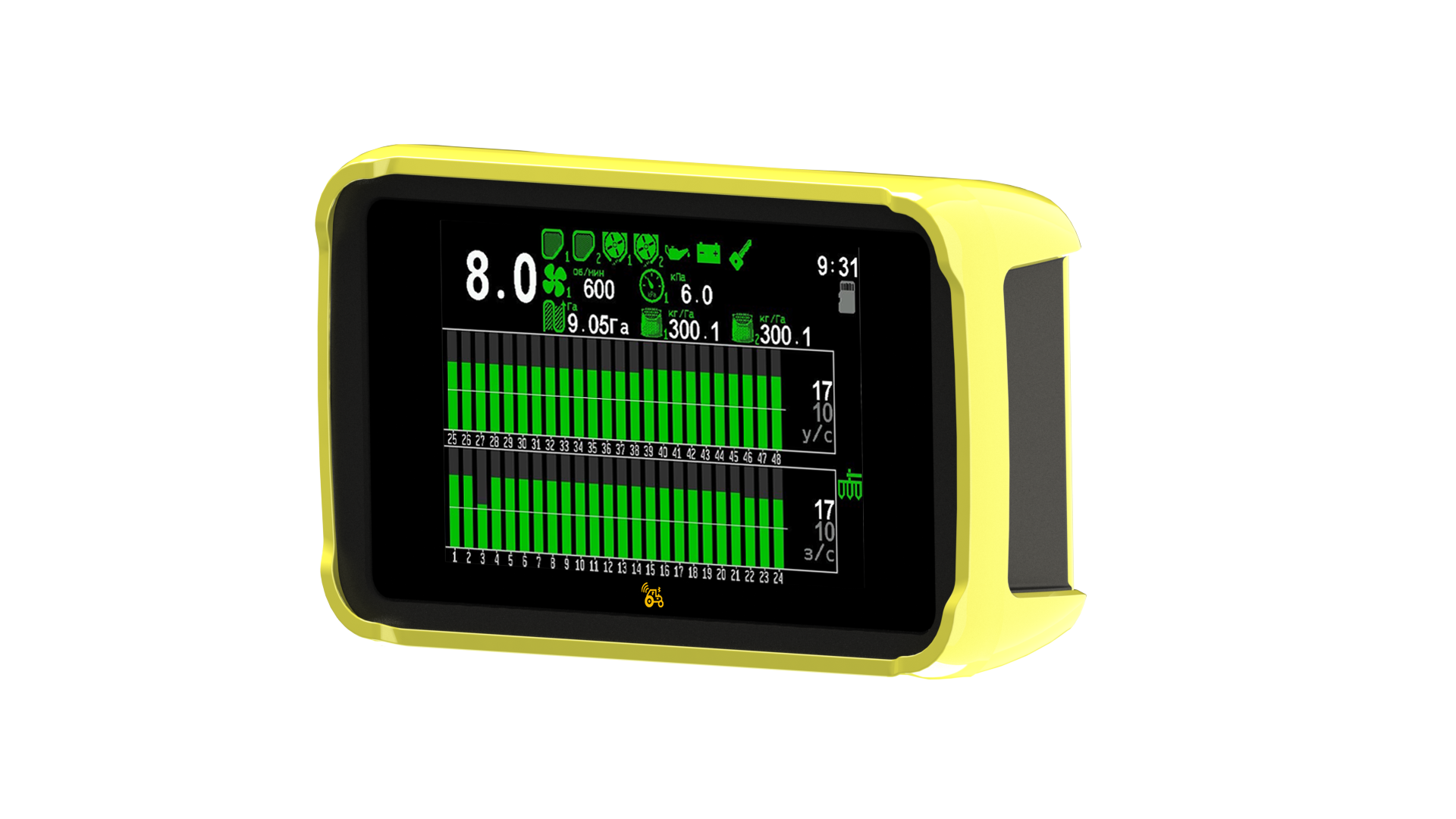
Seeding control panel with a touch screen
Start here
- What the Hectare 5 system doesThe seeding control system with the Hectare 5 panel in one page — what it watches, what it drives, and what it records.
- The panel and its touch screenWhat the Hectare 5 panel is made of from the operator's side — a touch screen without buttons — and what else is built into it.
- Switching onWhat the panel does after power-on, which state it starts in, and what to wait for before switching off.
- Menus, context menus, number pad and windowsThe five things everything on the panel is done through — working screens, the main menu, the context menu of a device, the number pad, and the windows that ask or tell — and how each is worked by touch.
- Quick start — getting ready and moving offThe order of getting the machine ready, what to check before the field, what happens when you move off, and what to watch while working.
- About the pictures in this manualWhich pictures of this manual are still to come, why the text stands without them, and what on a bench picture belongs to the bench and not to your machine.
The screens
- The home screenWhat every part of the home screen is — speed, indicators, area, rates, the section diagrams — on a drill standing still and on a planter at work, and what you can do from it by touch.
- The section diagram — columns, line and coloursHow to read the columns of the home screen in the "Precise" and the "Flow" mode, and what the control line means.
- Column colours and the four states of a sectionWhat each colour and symbol of a column on the section diagram means, and the four combinations of control and product application a section can be in.
- Indicators of the home screenEvery indicator of the home screen with all its states — what you see, what it means, what to do.
- The built-in GPS receiverWhat the satellite symbol on the home screen tells you, how the panel can take the travel speed from GPS, and what happens when the signal is poor.
- The second home screenThe second home screen — what is on it, how to open and close it, and what its chevrons, tiles and symbols do when touched.
- The working screens and how to move between themThe four working screens in their circle, the second home screen beside it, and the swipes that get you from one to another — including the way back home from Table and Statistics.
- The Table screenThe readings of every section in figures — which tables your machine has, what each column means, and how to read the colours.
- The Statistics screenThe report of the work on each field, block by block and line by line — and the menu that chooses the field, saves the report and erases it.
- The Motors screenThe dispenser electric motors and the tramline actuators of the machine, one tile each — how to read a tile and how to reach a motor's settings.
How to…
- Change the target rateRaise or lower the rate the panel holds and guards, from the home screen, while seeding — by touch.
- Lock product application by handStop all product application with one touch and hold, and start it again — what the lock does and how to see that it is on.
- Set the alarm level automaticallyLet the panel set the alarm level of the diagrams from the rate the machine really sows, with one double tap — grain drills in the "Flow" or "Hybrid" mode.
- Take a sensor into or out of controlStop the panel from watching one sensor — a section that is shut off, a broken sensor — and take it back later.
- Zero the readings of the Table screenSet the seed and fertilizer counters of the Table screen to zero — for a new field or a new seed lot — without touching the field statistics.
- Fill the disks with seedsTurn the seed disks of a planter with dispenser motors until every disk holds seed, so that sowing starts from the first metre — how to run it and read the result.
- Set up the tramline rhythmWhat a tramline rhythm is, worked out for your drill and sprayer, how to set it up on the panel by touch, and how the panel counts the bouts.
- Set the screen brightnessMake the screen brighter or dimmer — one item in the Settings menu, set by hand.
- Work without the speed sensorWhen the speed sensor fails in the field — take the speed from GPS, or finish the work on a simulated speed and control the application by hand.
Setting up
- Access levelsThe three access levels of the Hectare 5, what each one opens, and what happens to the alarms while a higher level is set.
- Enable the Agronomist levelThe steps, by touch, to raise the access level to "Agronomist" or "Service" before changing settings, and to return to "Operator" afterwards.
- The profileWhat the profile tells the panel, how to check it, what each profile item allows, when the panel refuses a profile, and how it is saved.
- Save and load settingsKeep a copy of the settings inside the panel and bring it back, and write the profile to a memory card.
- The Settings menuEvery item of the panel's own "Settings" menu — brightness, volume, language, touch sound, diagram settings, date and time, alarm delay, access level — with its range, default and access level.
- Seeding machine parametersThe working width, the modes of seeding and fertilizing, the tramline, the relation of sections to actuators and motors, and the two calibrations that need the machine to move.
- Sensor settingsHow to reach the settings of one sensor by touch, what its context menu holds, and which calibrations exist and where.
- The sensor status screenHow to read the status screen of a sensor — channel, address, type, link state, live figures and active alarms — what each kind of sensor shows on it, and how to move through it by touch.
- Travel speed sensorThe parameters of the travel speed sensor — pulses, wheel diameter, factor, speed limits, imitation, the built-in GPS receiver — and what setting the imitation does by itself.
- Calibrate the speed sensorDrive a marked 100 m so that the panel corrects the factor of the travel speed sensor.
- Seed sensors and dry fertilizer sensorsThe parameters shared by a group of optical seed or dry fertilizer sensors — fraction, sensitivity, rate error, skips and doubles, percent of sowing, tramline tolerance — and the per-sensor switch for product application.
- Liquid fertilizer sensors and pump controllerThe parameters of the liquid fertilizer section sensors and of the liquid fertilizer pump controller, with their ranges and defaults.
- Dispenser shaft sensorThe parameters of the dispenser shaft sensor — rotation control against the wheel, or weight control by the mass applied — with ranges and defaults.
- Calibrate the dispenser rotationTurn the drive wheel and the dispenser shaft together so that the panel learns how many shaft pulses belong to the wheel pulses.
- Calibrate the dispenser by weightTurn a ground-driven dispenser into a container and weigh the product, so that the panel can watch the rate in kilograms per hectare.
- Dispenser electric motorThe parameters of an electric metering motor — holes in the disk, gear ratio, direction, jam rollback, product, calibration figures, speed window and calibration button — with ranges, defaults and when each is shown.
- Calibrate a metering motor by weightLet the electric motor turn the metering roller into a container and weigh the product, so that the panel knows how much one turn delivers.
- Fan sensorThe parameters of the fan speed sensor — the allowed speed band and the pulses per turn — with ranges and defaults.
- Pressure sensorThe parameters of the air pressure sensor — the smoothing filter and the allowed pressure band — with ranges, defaults and when the band is watched.
- Marker sensorsThe parameters of the marker sensors — which marker a sensor watches and which input state means "lowered".
- Hopper, work position and engine sensorsThe settings of the two-state sensors — hopper level, work position of the implement, and the five sensors of the fan-drive engine.
- Tramline actuatorThe two parameters of the tramline actuator, where the rest of its settings live, and what its status screen shows.
- Device configuration — before you startWhat device configuration is, the preparation it needs, and the three-item pattern every configuration menu follows.
- Configure a seed sensorGive a new or replaced seed sensor the number of its row.
- Configure a pressure sensorGive a new or replaced air pressure sensor its address.
- Configure a HUB8Tell a HUB8 input device — "Concentrator-8" on the screen — what is wired to each of its eight channels.
- Configure a tramline actuator controllerTell an actuator controller which tramline actuator it drives and which marker sensors are wired to it.
- Configure the motor controllersGive a metering motor controller its address, choose the kind of controller, and set its parameters.
- Motor controller diagnosticsHow to read what a metering motor controller reports about itself on the Electric motors screen — speed, error code, voltages, temperature, current, status bits and fault counters — and how to move through it by touch.
- The Service menuEvery item of the "Service" menu, its access level, and which ones an engineer should leave alone.
Alarms and troubleshooting
- How alarms workWhen the Hectare 5 raises an alarm, what the alarm window shows, how it is closed by touch, which faults sound without a window, and how to use the alarm topics of this manual.
- Any device: connection lost or wrong device typeThe two alarms any sensor, actuator, controller or input device can raise — no answer from the device, or the wrong kind of device answering.
- Fan or dispenser shaft: speed alarmsWhat to do when the fan or the dispenser shaft turns too slowly, too fast, or not at all.
- Hopper emptyWhat to do when the panel reports that a hopper is running empty.
- Air pressure too high or too lowWhat to do when the pressure sensor of the air system reports a pressure or vacuum outside the allowed range.
- Application rate too low or too highWhat to do when the seed, dry fertilizer or liquid fertilizer sensors report a rate below or above the allowed band, and what NOT UNDER CONTROL means.
- Too many doubles or skipsWhat to do when a seed sensor of a precision planter counts more doubles or skips than allowed.
- Tramline: actuator stalled or product in the tramlineWhat to do when the tramline actuator jams, its position sensors contradict each other, or a shut-off section still delivers product.
- Seed or fertilizer sensor clogged, light-struck or brokenWhat to do when an optical seed or fertilizer sensor reports a blocked channel, too much light, a fault of its own, or outdated firmware.
- Engine: oil pressure, battery charge, fuel, air filterWhat to do when one of the engine sensors — oil pressure, battery charge, fuel level, air filter — raises an alarm.
- Product rate by weight too low, too high, or impossibleWhat to do when a product dosed by weight — by an electric motor or a weight-controlled dispenser — misses its target rate, or cannot reach it at all.
- User is Agronomist: alarms will not be shownWhy the panel warns that alarms are hidden, and how to get them back by touch.
- Travel speed sensor failed, speed limits contradict, or poor GPS signalWhat to do when one of two speed sensors stops giving pulses, when the minimum and maximum travel speed are set the wrong way round, or when the built-in receiver sees too few satellites.
- Metering motor: jammed, electrical faults, bootloaderWhat to do when the controller of a dispenser electric motor reports a jam, a short circuit, over-current, a wrong supply voltage, overheating, an unknown fault or a stuck firmware update.
- Liquid fertilizer pump: pressure and rate alarmsWhat to do when the liquid fertilizer pump controller reports too much pressure, a failed pressure sensor, or a rate it cannot hold.
- Read the fault code of an electric motorWhere the panel shows the numeric fault code of a metering motor controller, and what each code means.
Reference
- Touch zones and gestures on every screenWhat each touch gesture does — on the home screen, the second home screen, the working screens, in menus, on the number pad and in windows.
- TermsThe words this manual uses for gestures, rates, control, sensors, tramlines and devices — what each means on the Hectare 5.